
Status
This is a known issue. We are working on a resolution, with a target of August 2026.
Help
When at the office, UNDRR.org needs to access the local network
If you are accessing UNDRR websites from a UN office location and notice that the navigation menu or other page elements are missing or not loading, this page explains what is happening and how to fix it.
What is happening
UNDRR websites load some resources — including navigation menus and logos — from a shared asset server at assets.undrr.org. When you are on the UN internal network, your browser may treat this address as a "local network" resource and ask for your permission before allowing access.
Starting with Chrome version 142, Google introduced a new security feature called Local Network Access that prompts users before a website can load resources from addresses it considers to be on a private or local network. Depending on how the UN routes office network traffic, assets.undrr.org may appear to Chrome as a local network address, triggering this prompt.
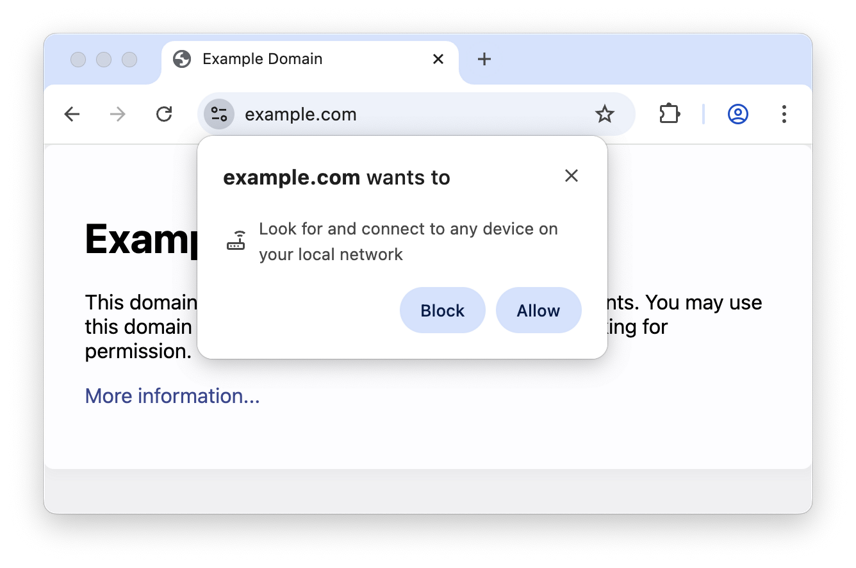
If Chrome shows you a permission prompt
When you first visit an UNDRR site, Chrome may show a small prompt near the address bar asking:
"[site] wants to access devices on your local network"
Click Allow. This gives the browser permission to load resources from assets.undrr.org and the page will work normally.
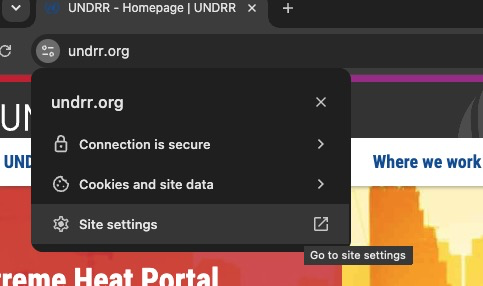
If you accidentally clicked Block, or the prompt never appeared on Chrome on desktop
If you dismissed the prompt or clicked Block, the navigation will not load. Here is how to reset the permission:
- Click the lock icon (or the information icon) to the left of the address bar
- Select Site settings
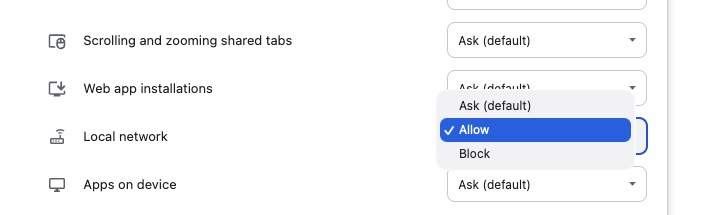
- Scroll down to Local network access (or search for it on the page)
- Change the setting from Block to Ask or Allow
- Reload the page
If you continue to have problems after following these steps, please contact [email protected]